
Ihr Warenkorb ist leer
A full-featured camera remote: infrared, Bluetooth, Wi-Fi, shutter cable and built-in shooting programs.
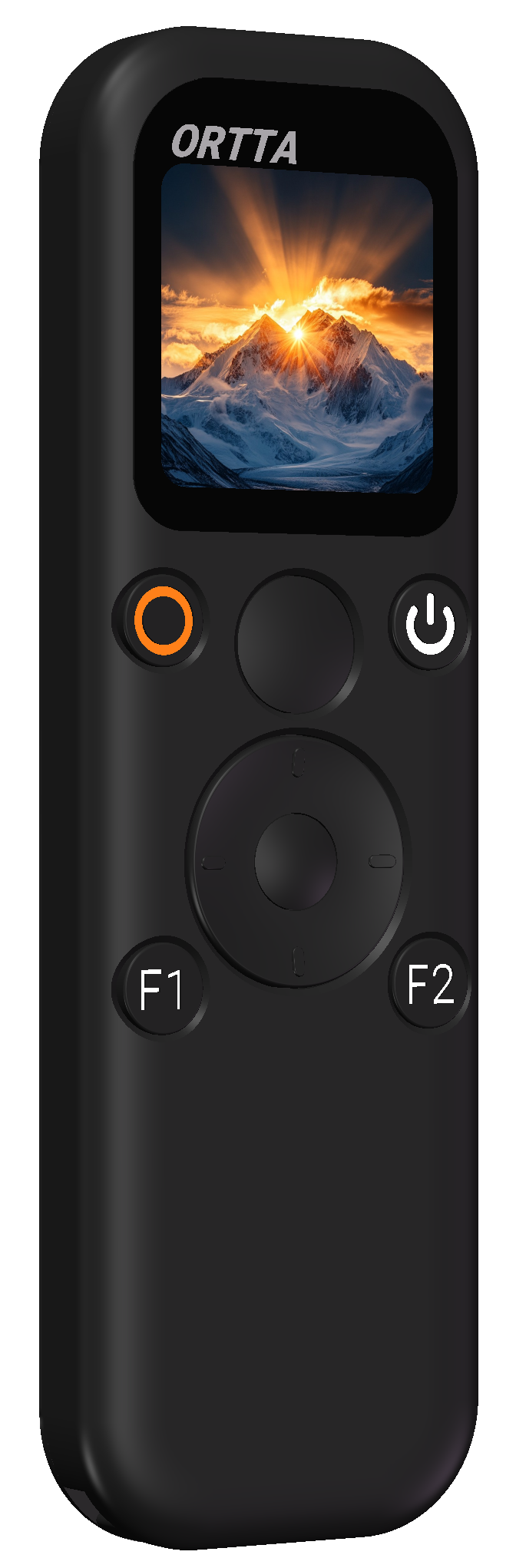
Thank you for purchasing the ORTTA Jupiter Pro, a camera remote with a color screen. It covers almost every way a camera can be triggered: infrared, Bluetooth, Wi-Fi (Canon CCAPI) and a shutter cable. It also has built-in shooting programs, voice command and GPS geotagging, and it can control Pluto 2, Pluto 2 Pro, Io and Io Pro.
The home screen of Jupiter Pro is the Program page. Press F1 for the Remote Control page, which works like the home screen of the simpler Jupiter, and press F2 to review the last 10 photos.
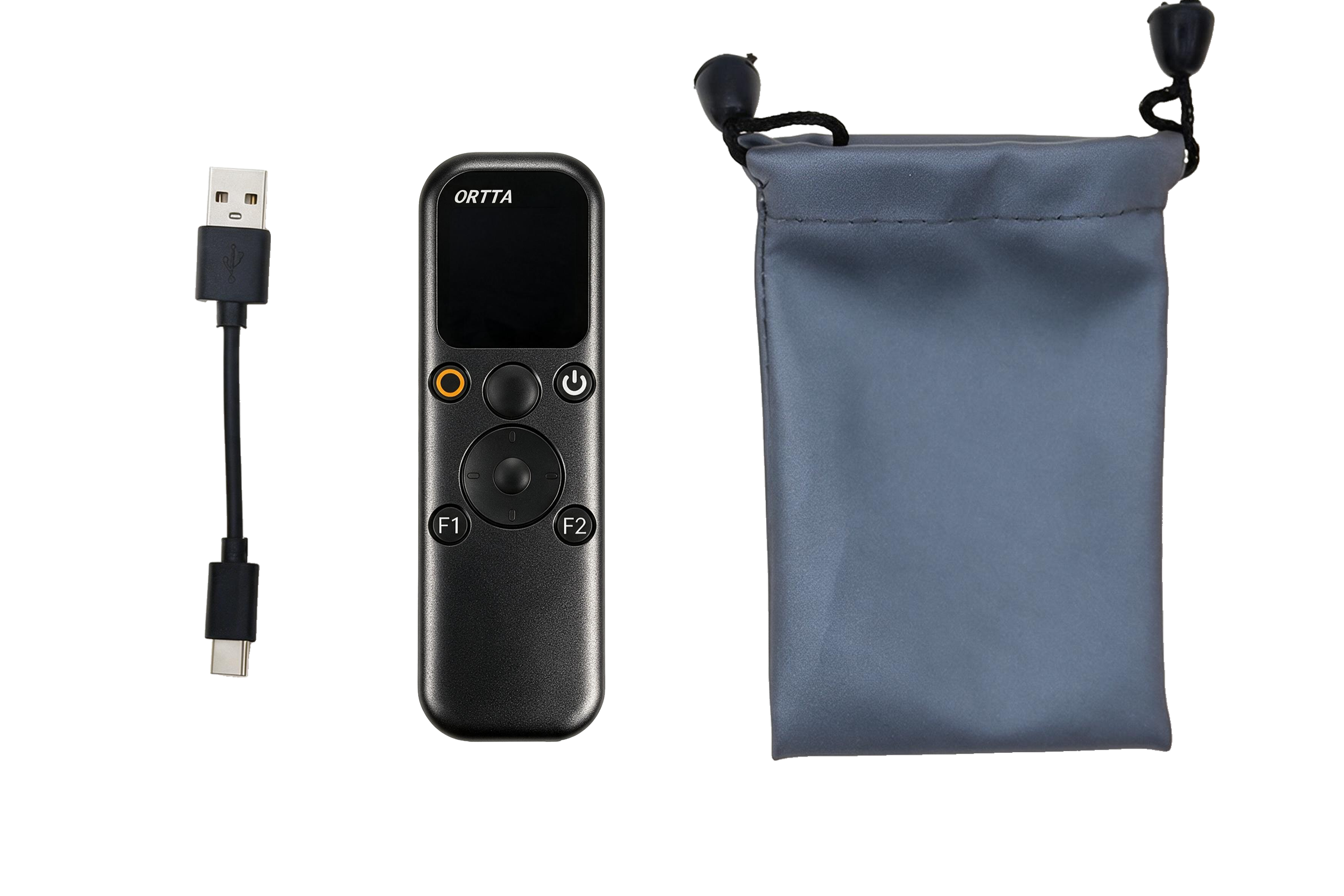
A shutter cable is not included.
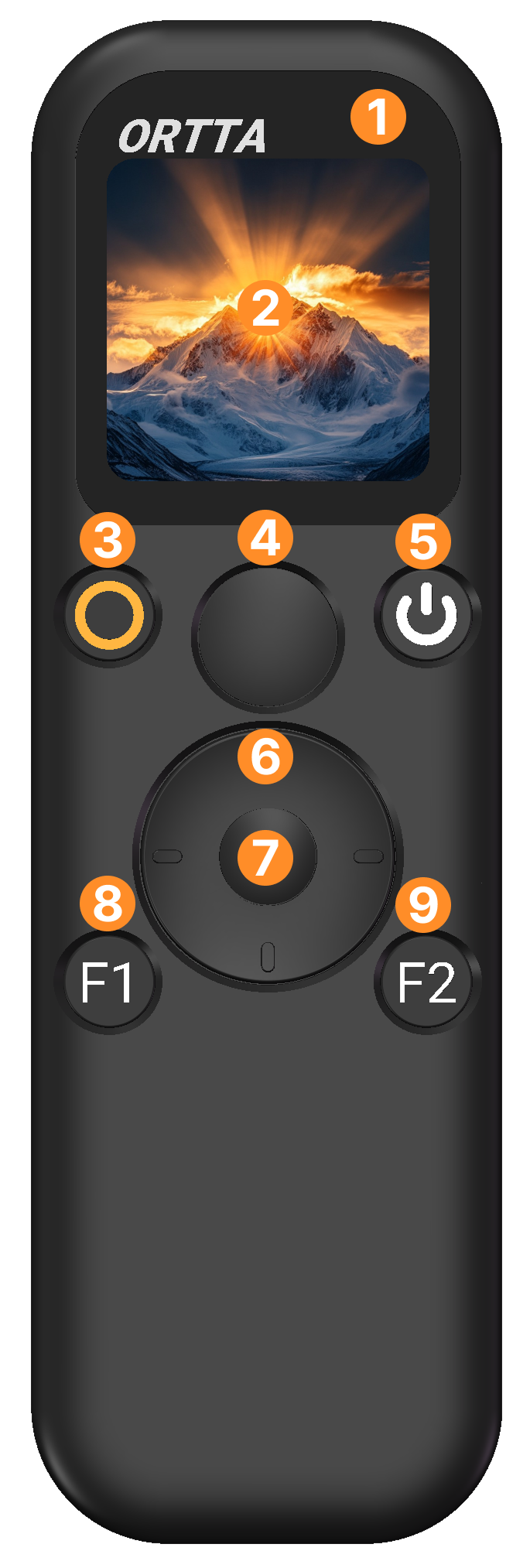
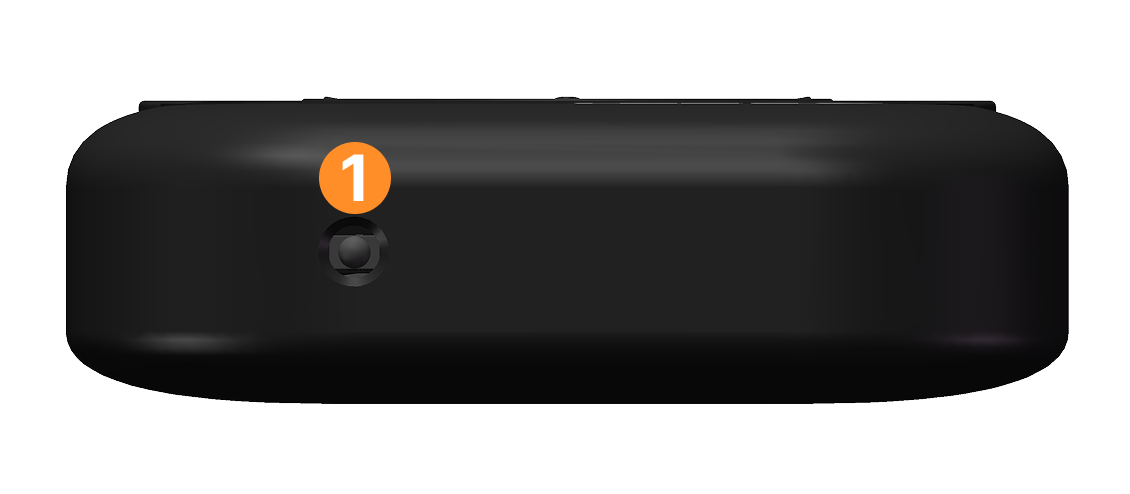
Jupiter Pro has 10 buttons. The Shutter button has two stages: a half-press focuses and a full press takes the photo.
| Button | Click | Long press |
|---|---|---|
| Power | Turn the screen on / off | Power off |
| Program | Start / stop the selected program. On the Remote Control page: start / stop video recording | Scan for your paired devices |
| Left | Go back. On the Program page: open the Menu | |
| Right | Open / close Settings | Open the list of connected devices |
| F1 | Open the Remote Control page. On that page: leave it | |
| F2 | Open Image Review. While Image Review or live view is open: close it | Open live view |
| Shutter | Take a photo on the connected devices | Half-press: focus on the connected devices |
| Up, Down, OK | Move and select |
Connect Jupiter Pro to a USB power source with the supplied cable. The orange LED lights while charging and turns off when the battery is full. A full charge takes about 2 hours.
The screen turns off by itself, and Jupiter Pro powers off by itself, after the times set in Display settings. Auto power-off is paused while a program runs and while a phone app or a phone/computer keyboard connection is active.
When the battery is low, the battery icon turns red as a warning. If it gets very low, Jupiter Pro stops any running program and powers off to protect the battery.
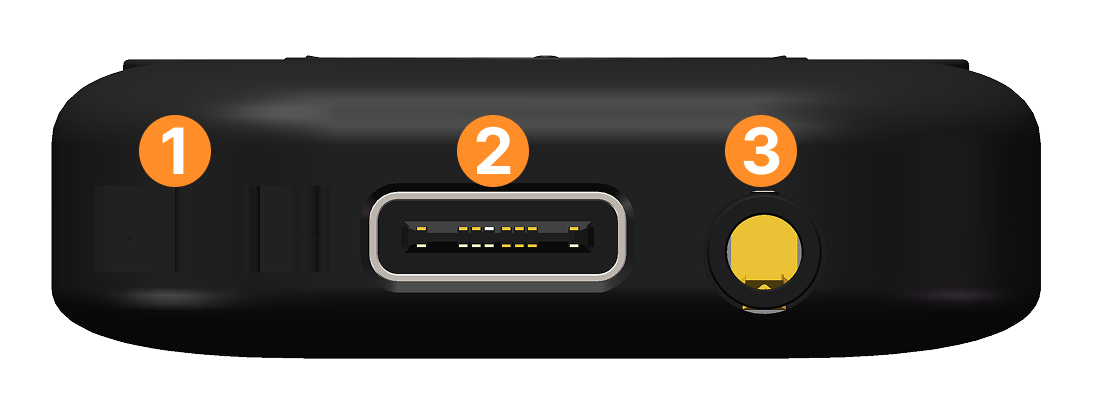
Jupiter Pro has three LEDs, the same as Jupiter and Pluto 2:
| LED | Colour | Meaning |
|---|---|---|
| 1 | Green | Status: lights when Jupiter Pro fires the camera or a program runs (see below) |
| 2 | White | Lights while Jupiter Pro is on |
| 3 | Orange | Lights while charging, off when fully charged |
The green LED shows: one short flash when focus succeeds; four flashes when focus fails; three short flashes when a program starts, the battery is low, or Bluetooth starts; one long flash (about 0.8 s) when a program ends; and a blink every 0.5 s during video recording.
During a self-timer the green LED flashes and a beep sounds: 4 flashes for the 2-second timer, and 8 slow then 4 fast flashes for the 10-second timer. The brightness of the green and white LEDs can be changed in Display settings.
Jupiter Pro has four main pages.
| Page | How to open | What it is |
|---|---|---|
| Program (home) | Appears after start-up | The selected program and its settings. Press Program to start or stop it. |
| Menu | Left, from the Program page | The list of programs. Select one to return to the Program page with it selected. |
| Remote Control | F1 | Controls the connected camera. This is the home screen of Jupiter. |
| Image Review | F2 | The last 10 photos. |
Status bar (top)
| Position | Shows |
|---|---|
| Left | The controller icon (lit when connected), a dot when the master camera is linked, a spinner while scanning, and the GPS icon when GPS is on (lit when there is a fix) |
| Centre | The page title |
| Right | Self-timer countdown, phone or computer connection, Wi-Fi, and Jupiter Pro's battery. The battery icon is green, yellow or red, with a bolt while charging. |
Messages slide in from the top of the screen.
Menu. The Menu is a vertical list of round tiles, one per program. The programs of Jupiter Pro are Shutter, Timelapse, HDR, Startrail, Video, Timer, ND Filter, Starscape and Voice. If you set an Ortta device as master (Settings › Devices › Devices › Set Master), the Menu shows that device's programs instead. See Controlling Pluto 2, Pluto 2 Pro, Io and Io Pro.
Image Review. A horizontal list of full-screen photos, newest first, with an index such as 3/10. Press Left and Right to move; the list does not wrap around. When there are more than 10 photos, the oldest is removed. With no photos the page shows a picture icon. See Image Review and Live View.
| Your gear | Connection |
|---|---|
| Camera with an infrared remote | Infrared, no pairing needed |
| Any camera with a remote release socket | Shutter cable, no pairing needed |
| Canon / Sony / Nikon / Fujifilm / Panasonic with Bluetooth remote | Direct Bluetooth |
| GoPro / Insta360 / DJI Osmo | Direct Bluetooth |
| Canon camera with CCAPI | Wi-Fi |
| Your phone's camera | Ortta Camera app |
| Phone or computer (keyboard / media remote) | Bluetooth keyboard mode |
| Io, Io Pro, Pluto 2, Pluto 2 Pro | Bluetooth, see section 6 |
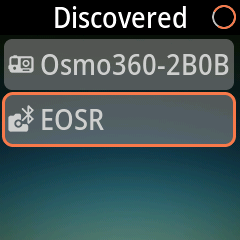
Brand notes:
If you see Pairing Failed, bring the camera closer, make sure it is still in pairing mode, and try again. Already Paired means this device is already in your list, and Max 10 Paired means you must remove one first.
Jupiter Pro can hold up to 10 paired devices. Up to 6 can be enabled at once; if you enable more, the screen shows Max 6 Enabled. The first row of the Devices list is This Remote, which is Jupiter Pro itself. To manage a device, open Settings › Devices › Devices (or long-press Right for the connected devices), select it and choose:
Badges in the list show the role of each device: a star for the master and a camera icon for the camera.
Important: two settings in Settings › Devices › Devices decide what the Menu and the Remote Control page show.
- Set Master changes the Menu to the program list of the master device. With This Remote as master, the Menu lists the programs of Jupiter Pro. With Io, Io Pro, Pluto 2 or Pluto 2 Pro as master, it lists the programs of that device, and a program you start runs on that device.
- Set Camera changes the Remote Control page (F1) to the remote control page of that camera: its keys, its status and, for a Canon CCAPI camera, its settings. Live view and photo preview also use this camera: Jupiter Pro sends their commands directly to it.
The master and the camera can be different devices.
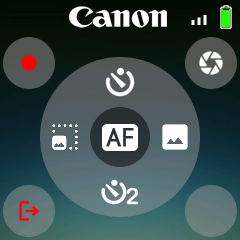
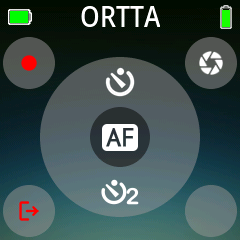
With This Remote as the camera, and no other device connected, the Remote Control page looks like this:
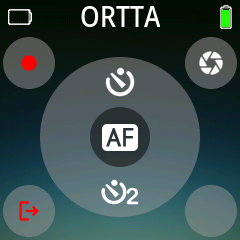
To show the Remote Control page of another camera, choose Set Camera for it. See Remote Control for each type of camera.
Long-press Program to scan for your paired devices again. Canon, Sony, Nikon, Fujifilm and Panasonic cameras go to sleep to save power. If one is not connected, press Shutter or the video key (Program on the Remote Control page): Jupiter Pro reconnects and then carries out the press. The first press can take a few seconds and may be missed, in which case press again. GoPro, Insta360, DJI Osmo and Canon CCAPI cameras are not woken by the Shutter key; see Action cameras.
Press F1 to open Remote Control, and press F1 again to leave it. The page shows the device you set as Camera (Settings › Devices › Devices › Set Camera) and its status; the page changes to match that camera, as described below. On this page Program works as the video key, and Shutter (half-press and full press) is sent to the camera. What the direction keys and OK do depends on the camera type, as described below. Turn on Settings › System › Guide to see a small icon next to each key on the page.
Each key is sent to all connected devices at once, so a Bluetooth camera, the infrared output and the shutter cable can fire together.
Canon, Sony, Nikon, Fujifilm and Panasonic. The page shows the brand logo (grey when the camera is not connected), the self-timer icons, a focus frame that turns green when the focus succeeds and red when it fails, and a recording indicator with the elapsed time.
| Key | Canon | Sony | Nikon | Fujifilm | Panasonic |
|---|---|---|---|---|---|
| Shutter | Photo | Photo | Photo | Photo | Photo |
| Shutter half-press | Focus (when Shutter AF is on) | same | not used | same | not used |
| Program (video) | Start / stop recording | same | same | same | same |
| Up | 10-second self-timer | same | same | same | same |
| Down | 2-second self-timer | same | same | same | same |
| Left / Right | Zoom wide / tele | Zoom out / in | Zoom - / + | not used | not used |
| OK | AF | AF-On | Fn1 | AF | not used |
| F2 | not used | C1 | Fn2 | not used | not used |
Press the same self-timer key again to cancel the countdown. Canon uses the camera's own 2-second delay, and the other brands count down in Jupiter Pro. Turn Shutter AF on or off in System settings.
A Canon camera in phone mode (Canon BLE phone) only takes photos and records video; Up and Down start the self-timer.
GoPro, Insta360 and DJI Osmo. Up, Down and OK move between the controls on the screen (mode, preset, power on). The page shows the camera's status.
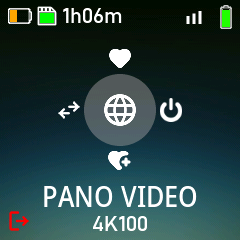
| Key | GoPro | DJI Osmo | Insta360 |
|---|---|---|---|
| Shutter | Photo, or start / stop in video and time-lapse | Record / take a photo | Record / take a photo |
| Program (video) | Switch to the video preset and start / stop | same as Shutter | same as Shutter |
| Left | Click: next group. Long press: next preset | Quick switch of mode | Click: mode. Long press: switch lens |
| Right | Click: next preset. Long press: sleep | Long press: sleep, or wake when asleep | Click: screen on / off. Long press: sleep |
| Up | Load the favorite preset | Switch to the saved favorite mode | Not available yet |
| Down | Long press: save the favorite preset | Long press: save the favorite mode | Long press: save the mode |
A short click on Right or Down shows "Long press to sleep" or "Long press to save". To wake a camera, select the power-on button on the page and press OK; DJI Osmo also wakes with a click on Right. Self-timers are not available for action cameras.
Infrared and the shutter cable need no pairing. They only send the shutter and cannot change any camera setting.
Infrared. Open Settings › Camera › Infrared Remote and set:
| Setting | Options | Default |
|---|---|---|
| Camera brand | Canon, Nikon, Sony, Olympus, Pentax, PowerShot | Canon |
| IR remote mode | Off, Single, 2S, Video | Off |
When the mode is anything but Off, Jupiter Pro sends the infrared code of the chosen brand each time you press Shutter, and each time a program triggers the camera. Point the infrared window (see Hardware) at the camera's remote sensor. Single is the normal shutter code. 2S (shutter with a 2-second delay) and Video differ from Single only on Canon and Sony; on the other brands every mode sends the single shutter code. A click on Program (video) sends the video code when the mode is not Off.
Shutter cable. Plug a standard 2.5 mm shutter cable for your camera into the shutter cable port. A half-press of Shutter focuses the camera and a full press fires the shutter, and the cable output follows the key: while you hold Shutter down the camera shutter stays down, so you can use Shutter for a Bulb exposure by holding it with the camera set to Bulb. The cable is sent together with every other connection, with no setting needed.
Two settings in Settings › Camera apply to infrared and the cable when a program triggers the camera: PreFocus (how long focus is held before the shutter) and Exposure (how long the shutter is held, default 0.3").
The shutter cable is not included. Use a 2.5 mm cable made for your camera.
Jupiter Pro can control Canon cameras that support CCAPI over Wi-Fi. This gives you live view, camera settings, focus control, video recording and photo preview.
Prepare the camera. The menu names differ slightly between camera models, so see your camera's Advanced User Guide for where to find Wi-Fi settings.
Jupiter Pro finds the camera on its own and tries the standard CCAPI ports: HTTPS on port 443 first, then HTTP on port 8080 (the Canon default). Leave Port No. at its default, and do not register an account under Account settings, because Jupiter Pro does not send a user name or password.
To reconnect later, select Camera Control API › Connect and pick the saved connection. If you set Auto connect to Enable, the camera joins the network by itself each time it is switched on.
On Jupiter Pro, open Settings › Devices › Wi-Fi. Jupiter Pro scans for networks.
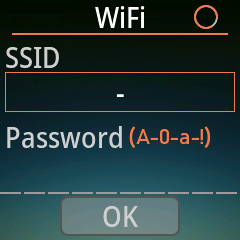
Select the SSID button and pick the Wi-Fi network of the camera, or of the hotspot the camera is joined to.
Enter the password in the Password row. The row has 10 character rollers: press OK on a roller to edit it, press Up and Down to change the character, and press OK again to finish. A space ends the password. The password is limited to 10 characters.
Select OK. Jupiter Pro connects (up to about 10 seconds), searches for the camera and shows its name for a moment when it is found. If the connection fails, nothing is shown on the screen: check the password and try again.
Only one Wi-Fi camera is active at a time.
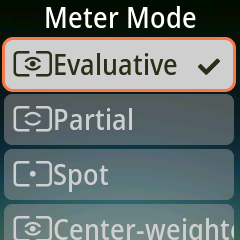
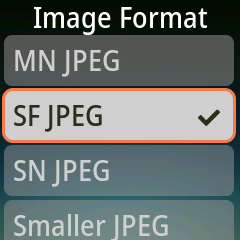
The CCAPI page shows the shooting mode, shutter speed (Tv), aperture (Av), ISO, exposure compensation, focus mode, white balance, drive mode, metering, image format, the battery and the number of shots left. Pluto 2 Pro and Io Pro use the same page.
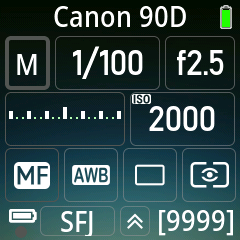
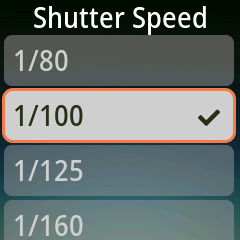
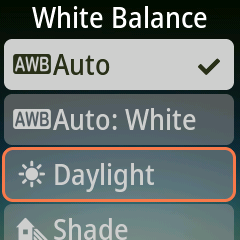
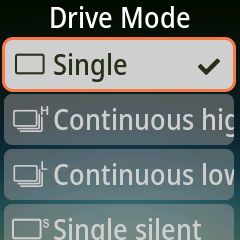
Selecting a setting and pressing OK opens a list. Move with Up and Down, press OK to choose.
| Key | Does |
|---|---|
| Shutter | Take a photo. In video mode the screen shows "To Photo Mode" |
| Shutter half-press | Autofocus |
| Program (video) | Start / stop recording. In photo mode the screen shows "To Video Mode"; change the mode on the camera |
| Up, Down, OK | Move between the settings and open one. OK on Tv, Av, ISO, focus mode, white balance, drive, metering or image format opens a list; the exposure mode and the exposure compensation are edited on the page |
| Left | 10-second self-timer |
| Right | 2-second self-timer |
| F2 | Click: Image Review. Long press: live view |
The focus-drive button opens a panel where Up and Down move the focus, Left and Right change the step size and OK leaves.
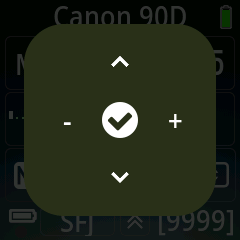
With CCAPI, Jupiter Pro can take long (Bulb) exposures, show live view, record video, show a thumbnail of every photo as a preview, and write the GPS position into each photo.
Wi-Fi also supports GoPro (photo preview only; shooting uses Bluetooth) and ezShare Wi-Fi SD cards (photo preview only).
Jupiter Pro can control your phone's camera with the Ortta Camera app, or act as a Bluetooth keyboard and media remote.
Note: pair Jupiter Pro inside the Ortta Camera app. Do not pair it in your phone's system Bluetooth settings: the pairing will be rejected.
With the app in the foreground:
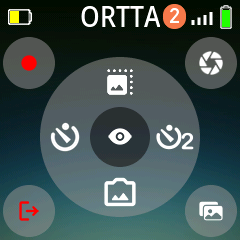
| Key | Does |
|---|---|
| Shutter | Take a photo |
| Program | Start / stop video recording |
| Up | Switch lens |
| Down | Switch front / rear camera |
| Left | 10-second self-timer |
| Right | 2-second self-timer |
| OK | Live view on / off |
| F2 | Image Review |
If the app is not in the foreground, a key press shows Open app.
The keys work on the Remote Control page, or while a program runs. Press F2 to switch between Camera, Music and Slideshow; Jupiter Pro remembers the mode.
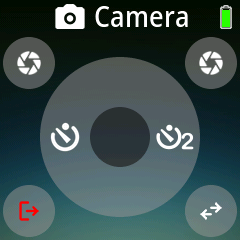
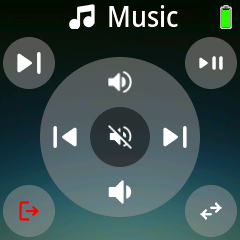
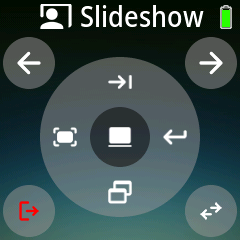
| Key | Camera | Music | Slideshow |
|---|---|---|---|
| Shutter | Volume up (takes a photo in most camera apps) | Play / pause | Next slide |
| Program | Enter | Next track | Previous slide |
| Left | 10-second self-timer | Previous track | Fullscreen |
| Right | 2-second self-timer | Next track | Enter |
| Up | Volume up | Tab | |
| Down | Volume down | Switch window | |
| OK | Switch lens | Mute | Black screen |
In Slideshow mode, set the presentation software in Settings › System › Present (Win PPT, Keynote, Mac PPT or Android).
Jupiter Pro has a 2-second and a 10-second self-timer for the connected camera. The status bar shows the countdown, the status LED flashes and a beep sounds. Press the same key again to cancel. Which keys start the timers depends on the device:
| Device | 10 seconds | 2 seconds |
|---|---|---|
| Bluetooth cameras (Canon, Sony, Nikon, Fujifilm, Panasonic) | Up | Down |
| Pluto 2 and Io | Up | Down |
| Canon CCAPI, Pluto 2 Pro and Io Pro | Left | Right |
| Ortta Camera app | Left | Right |
| Phone or computer keyboard (Camera mode) | Left | Right |
| Action cameras | not available | not available |
Live view and photo preview need a camera that sends images: a Canon camera over CCAPI, the Ortta Camera app, an Io Pro or a Pluto 2 Pro.


Set how the images look in Review settings.
Jupiter Pro runs its programs by itself: once a program starts, the camera is triggered from Jupiter Pro, with no phone needed. The Program page is the home screen.
While a program runs, only Power and Program work. The page shows the time left, the number of shots and a progress ring.
| Program | What it does |
|---|---|
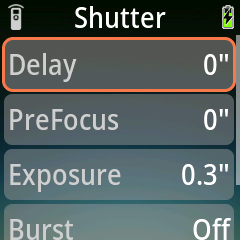
| Shutter | One picture, or a burst, with a delay and a pre-focus time |
| Timelapse | A series of photos at a fixed interval, with optional HDR frames and Bulb ramp |
| HDR | An exposure bracket in Bulb mode |
| Startrail | A continuous sequence of long exposures for star-trail stacking |
| Video | Timed recording that restarts the camera, to get past recording limits |
| Timer | Shoots during a time window each day |
| ND Filter | Works out the long exposure for an ND filter and shoots it |
| Starscape | Works out the longest exposure that keeps the stars sharp and shoots it |
| Voice | Takes a picture when you say a wake word |
When a program starts, Jupiter Pro plays a sound and sends a short focus pulse on the cable to wake the camera.
For the times in the programs below, the choices run from 30 ms to 30 minutes in steps (30 ms, 50 ms, 100 ms, 150 ms, 200 ms, 0.3" to 0.9", 1" to 9", 30", 45", 1', 2' ... 30'). Where 0 is allowed the choice list starts with 0.
| Setting | What it means | Default |
|---|---|---|
| Delay | Wait before the shot | 0 |
| PreFocus | Time to focus before the shutter | 0 |
| Exposure | How long the shutter is held | 0.3" |
| Burst | Number of pictures: Off, 1 to 10, 12, 15, 20 ... up to 400 | Off |
| BurstInt | Time between burst pictures | 0.5" |
If BurstInt is shorter than the exposure, Jupiter Pro makes it the exposure plus 50 ms. The program stops by itself when the burst is done. For a long exposure with a Bluetooth camera or the cable, set the camera to Bulb and set Exposure. Set the exposure mode of the camera to any mode for the normal shots.
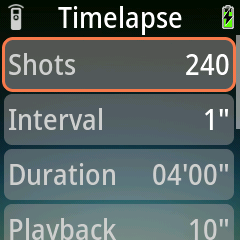
Takes a series of photos at a fixed interval. The frames play back as a video.
| Setting | What it means | Default |
|---|---|---|
| Shots | Number of frames: 1 to 1200 | 240 |
| Interval | Time between frames | 1" |
| Duration | The shooting time: interval × shots. Cannot be edited | 4' |
| Playback | The length of the video at 24 frames per second. Cannot be edited | 10" |
| Delay | Wait before the first frame. The shortest start delay is 2 seconds | 0 |
| Presets | Custom, Standard, Miniature, Sunrise, Sunset, Night Scene, Night Sky, Cloud Sky | Custom |
| HDR | A submenu: each frame is a bracket. Set MidExp, Shots (3 to 19, odd), Bracket (1/3, 2/3, 1, 2, 3 EV) and Gap | Off |
| BulbRamp | A submenu: St Delay, Duration, FirstExp and LastExp | Off |
Note: your camera may not shoot as fast as the interval you set. If it cannot keep up, frames are skipped.
Bulb ramp (day to night). Gradually changes the exposure time across the sequence so a sunset or sunrise stays evenly exposed. Set the camera to Bulb, fix the ISO and the aperture, and use a Bluetooth camera or the shutter cable. Jupiter Pro changes the exposure time smoothly from FirstExp to LastExp over Duration, so LastExp must be shorter than the interval. Exposures shorter than about 1/20 s cannot be timed in Bulb mode; use an ND filter for the bright end.
Power. Set the camera to power off its screen and meter between shots. Jupiter Pro wakes it before each frame with a focus pulse.
Shoots an exposure bracket in Bulb mode, to merge into one HDR image.
| Setting | What it means | Default |
|---|---|---|
| MidExp | The exposure of the middle frame: 1/20" to 68' | 1" |
| Shots | Number of frames: 3 to 19, odd | 3 |
| Bracket | Step between frames: 1/3, 2/3, 1, 2, 3 EV | 1/3 |
| Gap | Time between frames. 0 uses 2" | 2" |
| Delay | Wait before the first frame | 0 |
Set the camera to Bulb, manual focus and single drive, and turn image review off. Because Bulb mode is used, exposures faster than about 1/20 s may not trigger reliably; add an ND filter in bright light.
A continuous sequence of long exposures, which you stack afterwards into one star-trail image. Set the camera as for HDR.
| Setting | What it means | Default |
|---|---|---|
| Shots | Number of exposures | 10 |
| Exposure | Exposure time | 30" |
| Gap | Time between exposures. With a gap of 0, each exposure is shortened by 100 ms | 2" |
| Delay | Wait before the first exposure | 0 |
For cameras that stop recording after a time limit. Jupiter Pro presses the video button to start, presses it again after the Retrigger time, waits the Gap, and starts again, until Duration is over.
| Setting | What it means | Default |
|---|---|---|
| Duration | Total time | 2 h |
| Retrigger | Recording time before each restart | 30' |
| Gap | Pause between recordings | 10" |
| Delay | Wait before the first recording | 0 |
The camera must start and stop video with Bluetooth, the cable or infrared (set the mode to Video in Camera settings).
Shoots during a time window of every day, such as for a construction site or a plant.
| Setting | What it means | Default |
|---|---|---|
| Time | The clock of Jupiter Pro. It follows the GPS and the Ortta app | |
| Start time | When shooting starts | 00:00 |
| End time | When shooting ends. A window that crosses midnight works | 00:00 |
| Mode | Photo or Video | Photo |
| Interval | In Photo mode, the time between pictures | 10" |
| Retrigger, Gap | In Video mode, the recording time and pause | 30', 10" |
If the program starts inside the window, it shoots right away. In Video mode, recording starts when the window opens and stops when it closes. The page shows the time until the window starts or ends. Power the camera and Jupiter Pro from AC adapters for several days.
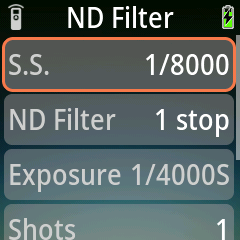
Calculates the exposure for a neutral-density filter. Set the shutter speed without the filter and the filter strength; Jupiter Pro works out the long exposure, and shoots it. Set the camera to Bulb.
| Setting | What it means | Default |
|---|---|---|
| S.S. | Shutter speed without the filter: 1/8000 to 30" | |
| ND Filter | ND2 to ND1048576, including ND10000 and ND100000 | ND2 |
| Exposure | The result. Cannot be edited | |
| Shots | Number of exposures | 1 |
| Gap | Time between exposures | 1" |
| Delay | Wait before the first exposure | 0 |
For example, 1/125 s with ND64 shows 1/2 s.
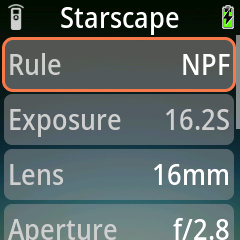
Calculates the longest exposure that keeps the stars sharp, and shoots it. Set the camera to Bulb.
| Setting | What it means | Default |
|---|---|---|
| Rule | The rule: 300, 400, 500, 600 or NPF | NPF |
| Exposure | The result. Cannot be edited | |
| Lens | The focal length of the lens | 16 |
| Aperture | The aperture | f/2.8 |
| Sensor | MF, FF, APS-H, APS-C, M4/3, 1" Type, 1/1.7", 1/2.3" | FF |
| Camera | The camera model; NPF uses its pixel size | EOS Ra |
| Shots | Number of exposures | 1 |
| Gap | Time between exposures | 1" |
| Delay | Wait before the first exposure | 0 |
The NPF rule takes the aperture, the focal length and the pixel size of the camera into account, so it gives a more accurate time than the 300, 400, 500 and 600 rules, which only use the focal length and the sensor size. Use a shorter rule (400 or 300) for stars near the celestial equator.
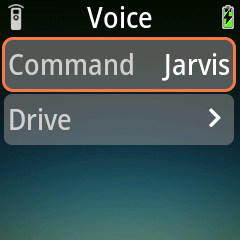
Takes a picture when you say a command word, so you can trigger the camera without touching anything. Jupiter Pro listens with its built-in microphone, offline.
There are two command words, in English: Jarvis and Alexa.
After each command, Jupiter Pro waits one second before it listens again.
| Setting | Options | Default |
|---|---|---|
| Command | Jarvis, Alexa | Jarvis |
| Drive Settings | A submenu: Drive mode (Still, Video, Bulb); PreFocus, ShutPulse, Burst and BurstInt for Still; Duration for Video (Manual toggles the recording); Bulb Time and Bulb Gap for Bulb | Still, 0, 200 ms, Off, 200 ms |
The running page shows the word that takes a picture. Say the word on its own: it is a wake word, not a sentence. Speak clearly, within a few metres, with the microphone toward you and away from wind.
Jupiter Pro can start the programs of the other Ortta devices and show their status. These devices connect to the camera for you.
The program runs on the Ortta device. Jupiter Pro shows "Program is running" instead of opening its own Menu while it runs. To go back to the programs of Jupiter Pro, set This Remote as master.
| Master device | Programs in the Menu |
|---|---|
| This Remote (Jupiter Pro) | Shutter, Timelapse, HDR, Startrail, Video, Timer, ND Filter, Starscape, Voice |
| Io, Io Pro | Shutter, Timelapse, HDR, Startrail, Video, Timer, ND Filter, Starscape |
| Pluto 2 | The programs of Pluto 2, see its manual |
| Pluto 2 Pro | The programs of Pluto 2, plus Speech, Bracket, Focus Stack and Holygrail |
Set Camera changes the Remote Control page to that device's page, and live view uses that device. The master and the camera can be different devices.
When an Ortta device is connected, Shutter and the video click of Program on the Remote Control page are sent to it. For the camera set-up, follow the manual of the Ortta device. See Manuals.
Jupiter Pro has a built-in GPS. It writes the position into the photos of cameras that support geotagging.
Open Settings › Geotag:
| Setting | Options | What it does |
|---|---|---|
| GPS | Off, Device First, Phone First, Device Only, Phone Only | Where the position comes from. The phone position comes from the Ortta Camera app. |
| GPS Info | — | A window with status, fix, satellites, HDOP, latitude, longitude, altitude and time. Updates every second. |
| Geotag rate | Off, 1", 2", 5", 10", 15", 30", 1', 2', 5' | How often the position is sent to the camera. |
| Timezone | — |
The default is Off. The GPS icon in the status bar lights when there is a position fix.
The position is sent to Ortta devices (Pluto 2, Pluto 2 Pro, Jupiter, the Io Pro for Canon and the Io for Nikon below), DJI Osmo, Fujifilm, Panasonic, Sony (in pairing mode) and the Canon phone mode. Canon CCAPI cameras get the position written into each photo. GoPro and Insta360 do not receive it.
Canon with an Io Pro. A Canon camera connected to an Io Pro gets the position through the Io Pro. Pair the Io Pro with Jupiter Pro and set Geotag rate to anything other than Off.
Nikon. Nikon cameras do not take the position over their Bluetooth remote link. To geotag a Nikon camera you need the Ortta Io for Nikon, a dedicated Io receiver with a 10-pin or GPS terminal connector. The 10-pin version is for high-end Nikon cameras that use the DC0 cable; the GPS terminal version is for cameras that use the DC2 cable. Pair it with Jupiter Pro the same way as an Io (see Pairing a Bluetooth device) and plug it into the camera. With Geotag rate set to anything other than Off, Jupiter Pro sends the GPS data to it. The standard Io only releases the shutter, and the Io Pro cannot geotag Nikon cameras (it geotags Canon only).
Press Right to open Settings. Move with the direction buttons, select with OK and go back with Left.
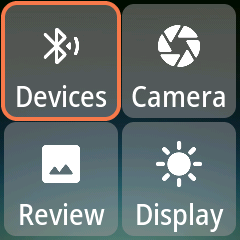
| Item | What it does |
|---|---|
| Devices | The paired devices. Select one to Enable, Disable, Set Master (the Menu shows that device's programs), Set Camera (Remote Control and live view use that camera) or Remove it. See Master and Camera. |
| Add | Scan for a camera and pair it. See Pairing a Bluetooth device. |
| Wi-Fi | Join a Wi-Fi network for a Canon CCAPI camera. See Canon CCAPI. |
| Setting | Options | Default |
|---|---|---|
| PreFocus | How long focus is held before the shutter, for the cable and infrared | 0 |
| Exposure | How long the shutter is held, for the cable and infrared | 0.3" |
| Infrared Remote › Camera brand | Canon, Nikon, Sony, Olympus, Pentax, PowerShot | Canon |
| Infrared Remote › IR remote mode | Off, Single, 2S, Video | Off |
Press OK on a row to choose a value. Both times use the same list as the programs, from 0 and 30 ms up to 30'. See Infrared and shutter cable.
Controls the live view and photo preview. See Image Review and Live View.
| Setting | Options | Default |
|---|---|---|
| Download | On, Off — receive a preview thumbnail of each new photo | On |
| Image review › Review time | Off, 2", 4", 8" | 2" |
| Image review › Scale | Fit, Fill | Fill |
| Image review › Quality | Max, High, Medium, Low | High |
| Preview › Scale | Fit, Fill — for live view | Fill |
| Preview › Quality | Max, High, Medium, Low — for live view | High |
| Setting | Options | Default |
|---|---|---|
| Backlight | Screen brightness: Off, 1%, 5%, 10%, 20% ... 100% | 50% |
| Led | Brightness of the LEDs | 50% |
| DispOff | Time without button presses before the screen turns off: Stay on, 30", 1', 2', 5', 10', 20', 30', 60', 2h | 5' |
| PowerOff | Time without button presses before Jupiter Pro powers off. Same options | 30' |
| Dark Mode | Default, Dark, Light | Default |
See GPS and Geotag.
| Setting | Options | What it does |
|---|---|---|
| Phone RC | On, Off | Turns on the Bluetooth keyboard and media remote. Jupiter Pro restarts when you change it. See Bluetooth keyboard |
| Shutter AF | On, Off | Half-press focus before the shutter on Bluetooth cameras |
| Present | Win PPT, Keynote, Mac PPT, Android | The presentation software for Slideshow mode |
| Guide | On, Off | Shows the key icons on the Remote Control page |
| Language | The language of the screen. The default follows the system | |
| Sound | On, Off | Turns the buzzer on or off |
The Misc group contains:
The Settings row in Devices (shown when an Ortta device such as Io or Pluto 2 is the current device) changes the settings of that device: PreFocus, Exposure, infrared, review time, LED mode and brightness, sound, backlight, screen-off and power-off times.
New firmware adds features and fixes bugs. You update Jupiter Pro from the Ortta app over Bluetooth; no computer or cable is needed.
While the update runs, Jupiter Pro does not turn off by itself and its screen stays on. If the update stops or fails, these timers go back to your settings and you can start it again.
Note: after an update, leave Jupiter Pro on and let the Ortta app connect to it once. This confirms that the new firmware works. If the new firmware does not start properly, Jupiter Pro goes back to the previous version by itself, and the app offers the update again.
Jupiter Pro does not find my camera. Make sure the camera is in Bluetooth pairing mode and close to Jupiter Pro, then open Devices › Add. Canon cameras must be unpaired first. For Insta360, start the scan on Jupiter Pro before pairing from the camera.
Jupiter Pro shows the search icon although my camera is on. Long-press Program to scan again. GoPro and Insta360 cameras disconnect when they sleep. Wake them with the power-on button on the Remote Control page (see Action cameras).
The first press after the camera slept does not take a photo. Jupiter Pro has to reconnect first. It carries out the press after reconnecting, which can take a few seconds.
The buttons do nothing. The screen is off. Click Power to turn it on. Buttons other than Power and Program do nothing while a program runs.
My phone shows "Open app". The Ortta Camera app is not in the foreground. Bring it to the front, or use the keyboard remote with the system camera.
The Remote Control page does not match my camera. The page follows the device set as Camera. Open Settings › Devices › Devices, select your camera and choose Set Camera (see Master and Camera).
The Menu does not show the programs I expect. The Menu shows the programs of the master device. Choose Set Master for This Remote or for the Ortta device whose programs you want.
Jupiter Pro does not connect to my Wi-Fi camera. No message is shown when the connection fails. Check the password (10 characters at most), make sure the camera's Wi-Fi and CCAPI function are on, and try again (Canon CCAPI).
The infrared remote does not fire my camera. Set the Camera brand and the IR remote mode in Settings › Camera › Infrared Remote, make sure the camera's infrared remote is switched on, and point the infrared window at its sensor.
My Bulb program does not work over infrared. Infrared is a single pulse and cannot hold the shutter open. Use Bluetooth or the shutter cable for Bulb programs (HDR, Startrail, ND Filter, Starscape). Infrared and the cable cannot change the camera's settings.
Contact. info@ortta.co · ortta.co
